Host PC Basic Configuration #
Participants and speakers can only use xBridge while the host (the xBridge account owner) is running a meeting. Therefore, it is necessary to keep the meeting active continuously during the session. Please ensure that PC sleep mode or screensaver functions do not unexpectedly stop the PC and terminate the xBridge meeting.
1. Connect Power to PC #
Always connect a power cable to your PC to ensure the power doesn’t run out during the meeting.
2. Audio Input Settings #
Select your PC’s default microphone as the audio source for interpretation. Therefore, please select the default audio from your PC settings.
2-1. Audio Input Settings on Mac #
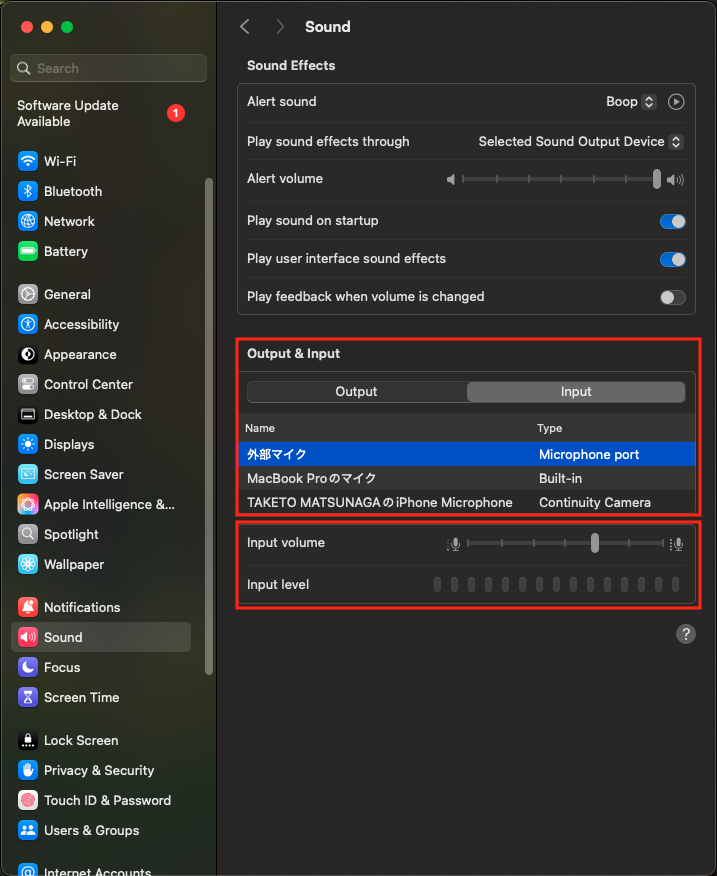
Navigate to System Settings → Sound in the Output & Input section, select Input and specify the audio device. When you actually input audio, the Input Level gauge will respond.
2-2. Audio Input Settings on Windows #
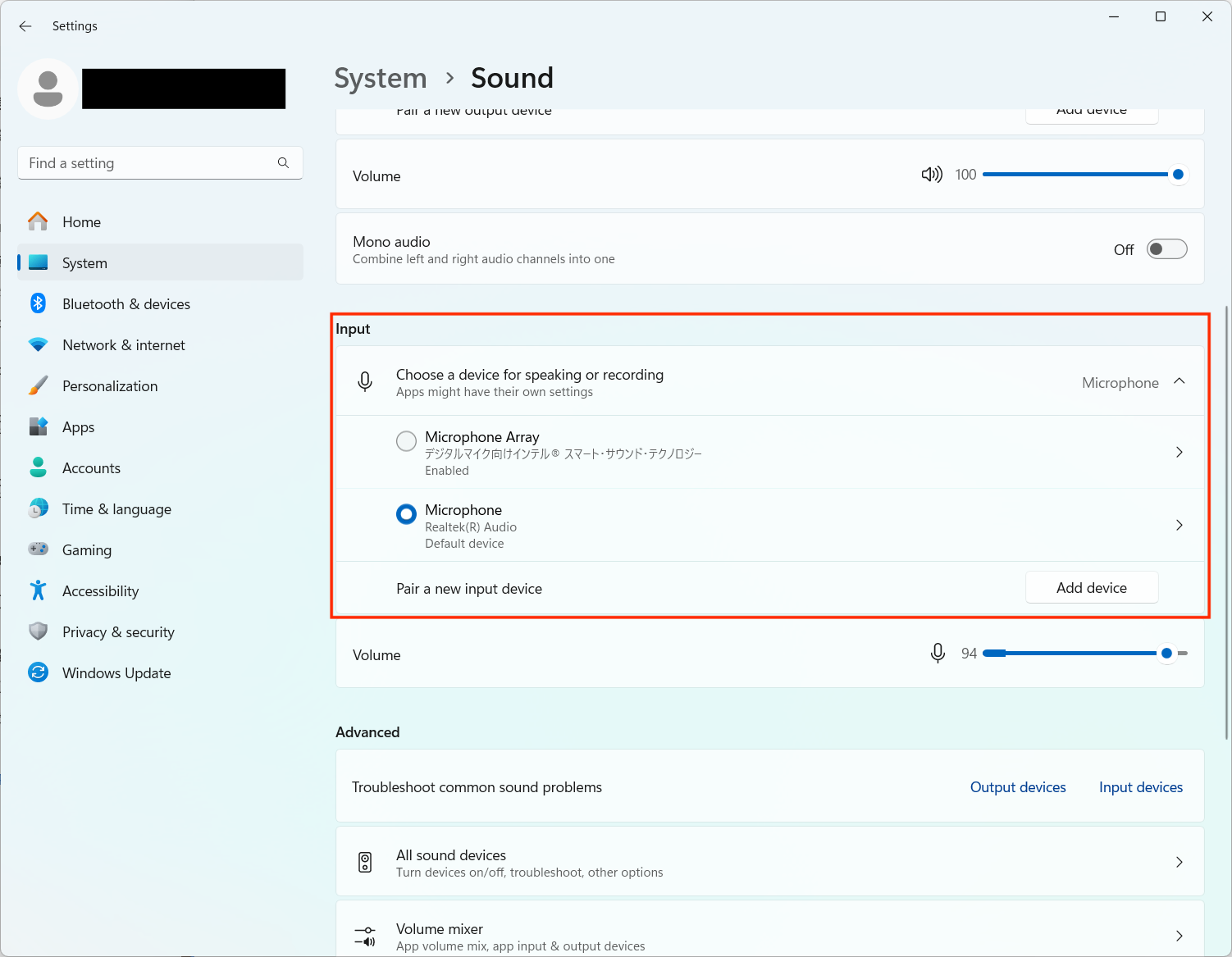
Go to System → Sound and specify the audio device in the Input section.
3. Sleep Prevention #
Please configure your PC not to sleep during meetings.
3-1. Mac Sleep Prevention #
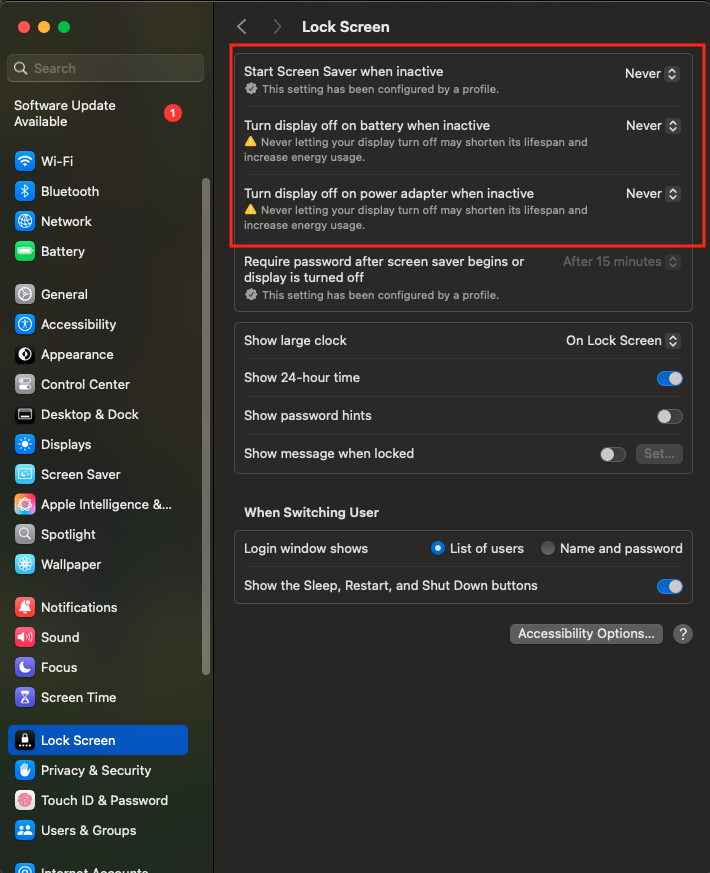
In System Settings → Lock Screen, configure the following settings:
Start screensaver when inactive: NeverTurn display off on battery when inactive: NeverTurn display off on power adapter when inactive: Never
3-2. Windows Sleep Prevention #
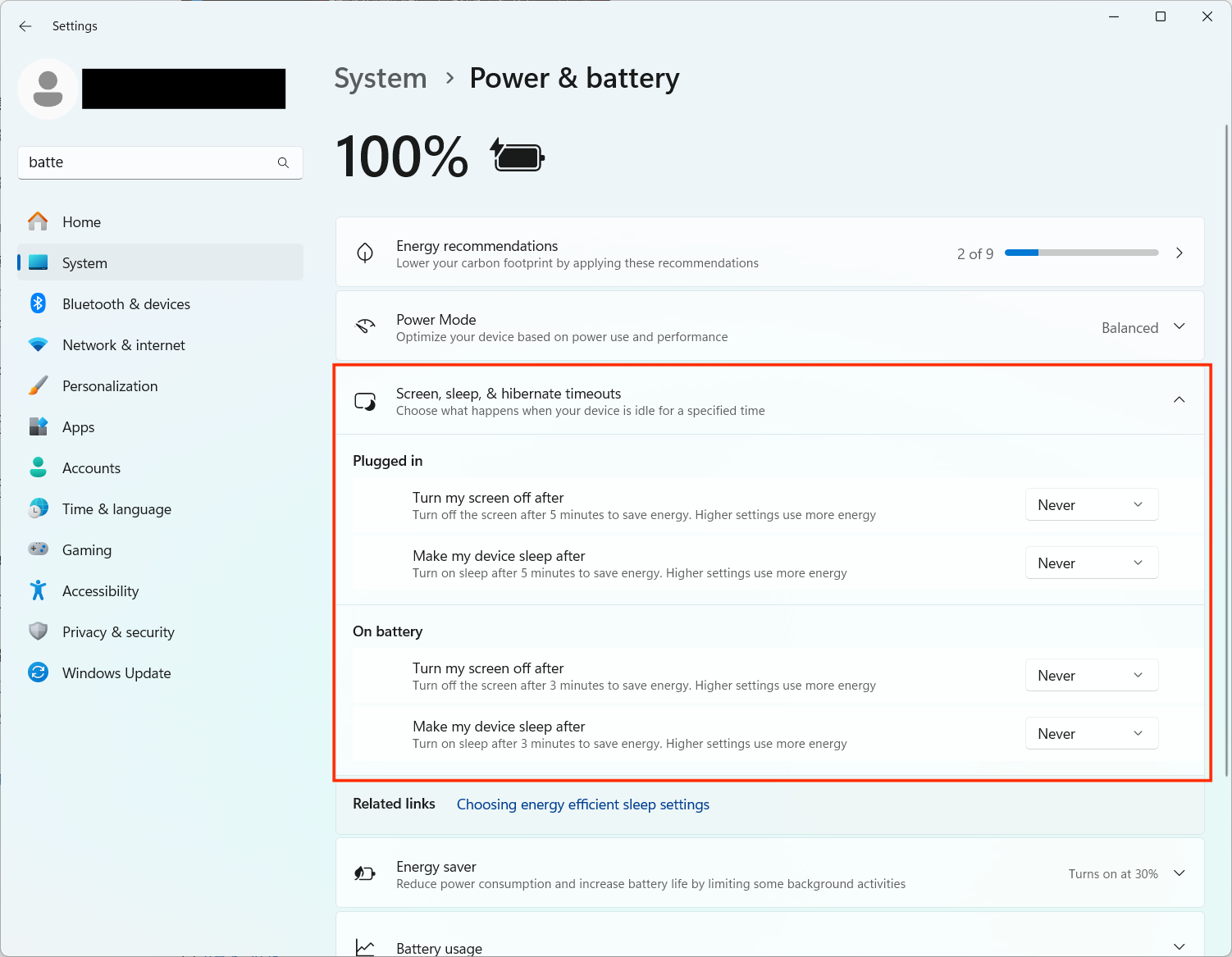
In System → Power & battery under the Power section, configure the following settings:
Turn off my screen after(when plugged in): NeverPut my device to sleep after(when plugged in)): NeverTurn off my screen after(when it's on battery): NeverPut my device to sleep after(when it's on battery): Never
4. Install Google Chrome #
xBridge recommends using the Google Chrome browser for optimal performance. If Google Chrome is not installed, please follow these steps to install it:
- Visit the Google Chrome official website
- Click the “Download Chrome” button
- Run the downloaded installer and follow the on-screen instructions to complete the installation
- After installation is complete, launch Google Chrome and use xBridge
About Supported Browser
xBridge supports only Google Chrome.