Start Meeting #
1. Host PC Setup #
To prevent unexpected meeting termination, please configure the host PC settings by referring to Host PC Basic Configuration.
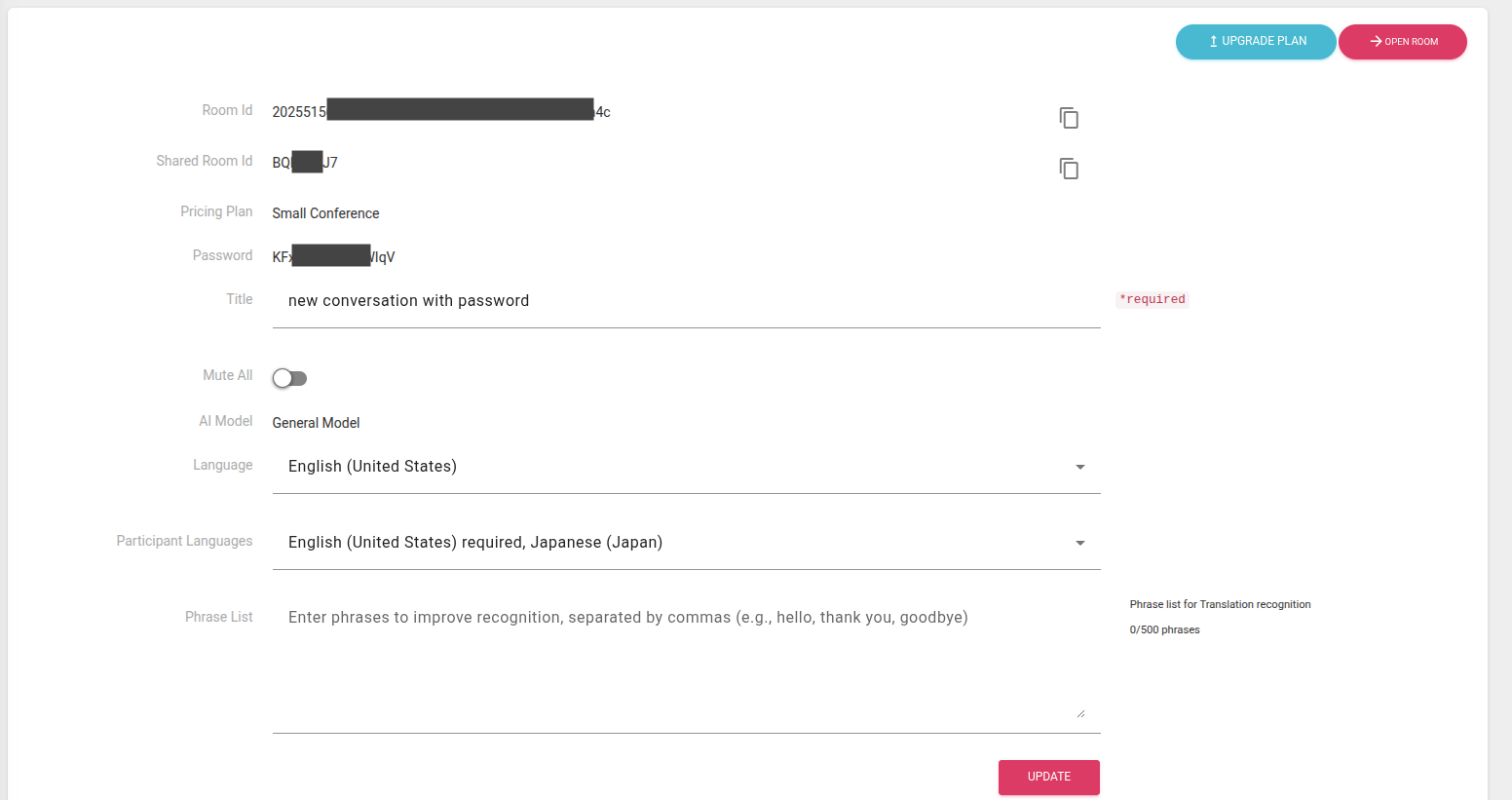
2. Meeting Configuration #
| Item | Description |
|---|---|
| Meeting ID | Unique meeting ID. |
| Shared Room ID | Room ID. Automatically entered via the participant link. |
| Pricing Plan | Current pricing plan in use. Automatically changed according to the actual number of users. |
| Title (Editable) | Meeting title. |
| Participant Mute (Editable) | Specify whether to mute speakers other than the host. When enabled, speakers cannot speak. |
| AI Model | AI model used in the meeting. |
| Language (Editable) | Host’s primary language. |
| Participant Language (Editable) | Language used by participants. |
| Phrase List (Editable) | Available only with “General Model”. Enter special phrases such as technical terms or phrases where you want to avoid mistakes. Maximum 500 words. |
2. Confirm Meeting Information #
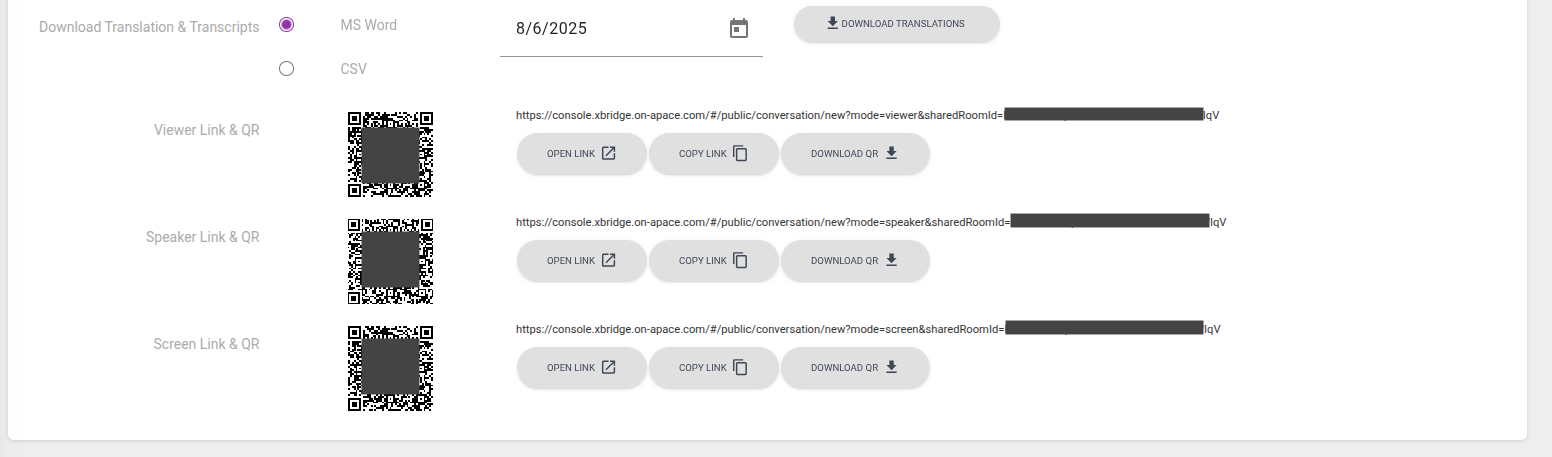
| Item | Description |
|---|---|
| Interpretation Result Download | Specify a date to download interpretation and transcription results. |
| Viewer Link & QR | Participant link and QR code dedicated for Viewers. |
| Speaker Link & QR | Participant link and QR code dedicated for Speakers. |
| Screen Link & QR | Participant link and QR code dedicated for Screens. |
2. Start Meeting #
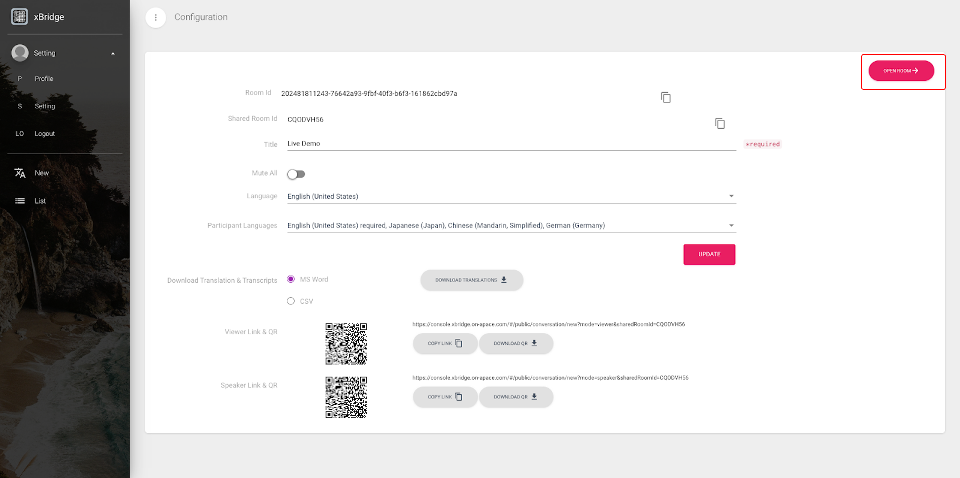
Click the OPEN ROOM button in the upper right corner of the meeting details screen to start the meeting.
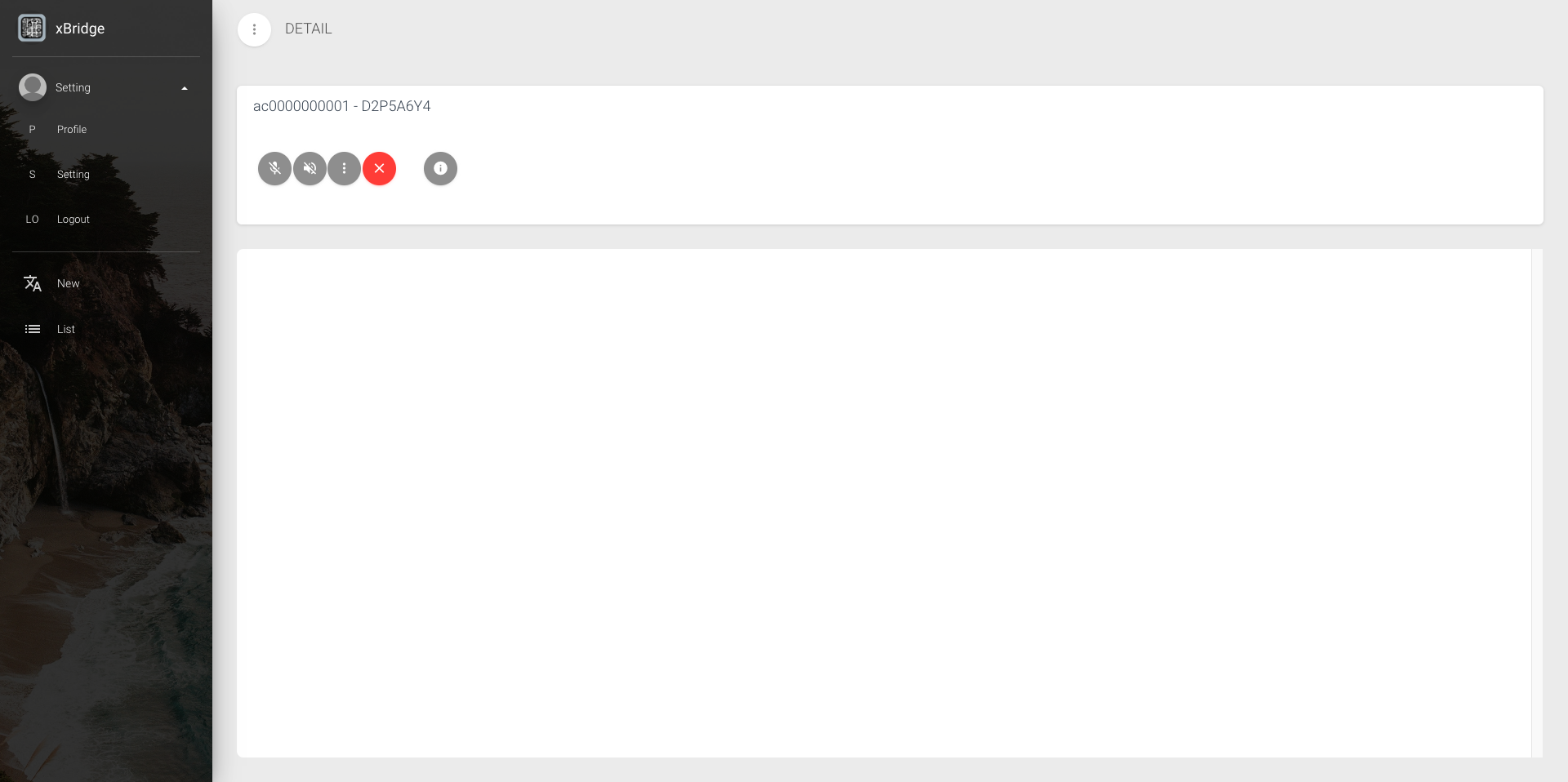
Interpretation startup may take 10-60 seconds
After the meeting starts, red error messages such asConversation is closedmay appear at the top of the screen for a few seconds while waiting for the interpretation system to be ready. If you selected “Faster Whisper” as the meeting model, it may take up to 60 seconds to be ready to start.
Speakers should join from separate devices and start the conversation. Interpretation results will automatically be displayed on each device.
If the host acts as a speaker, click the microphone button to enable it and start the conversation. When enabled, a red microphone will be displayed. If you want to use voice readout for interpretation results, click the speaker button to enable it. When enabled, a red speaker will be displayed. When the meeting is finished, be sure to click the exit button to leave.
The latest updated interpretation content is highlighted in blue.
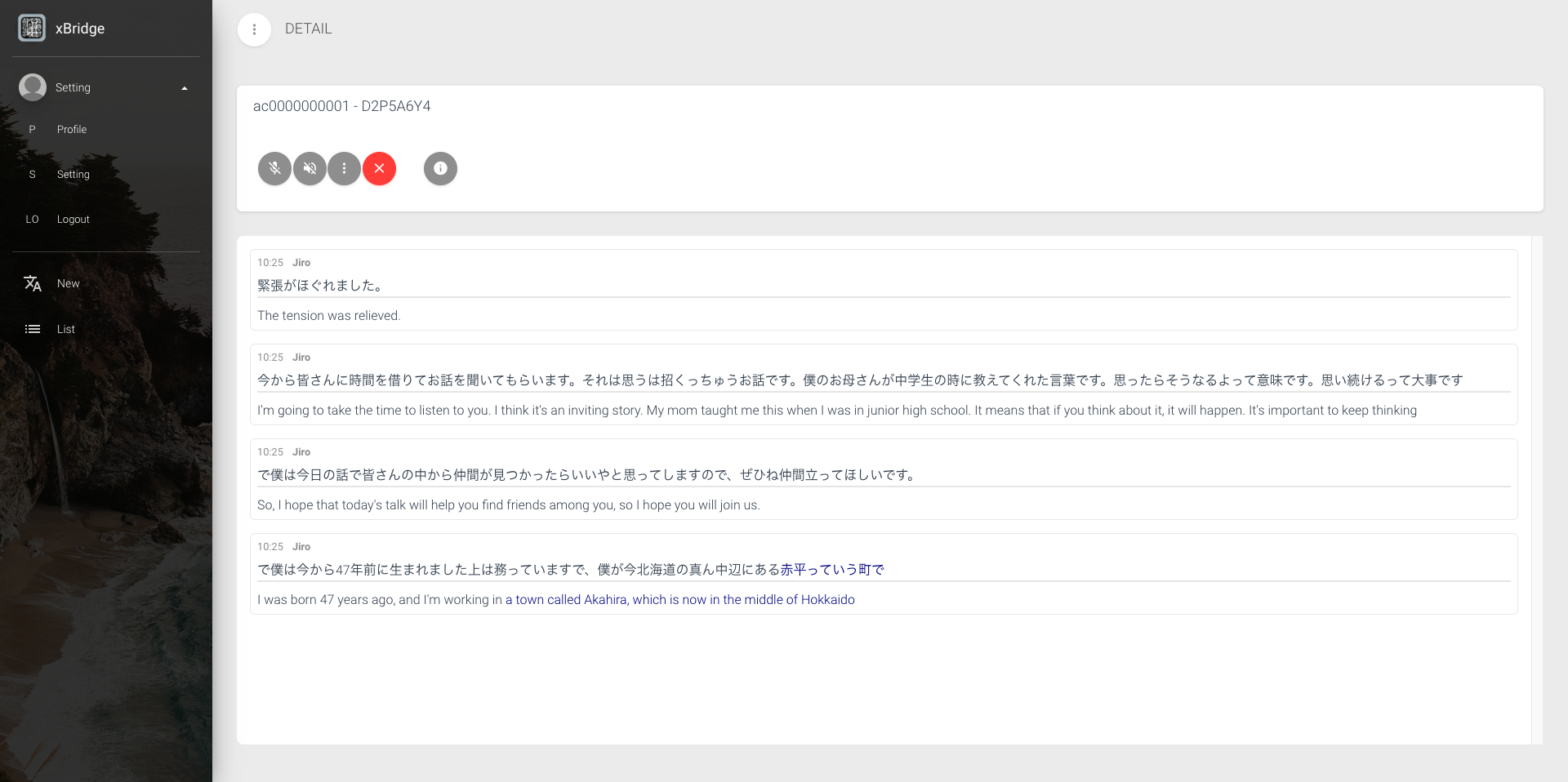
Host language is English, displaying interpretation results from Japanese speaker. English interpretation results are displayed.
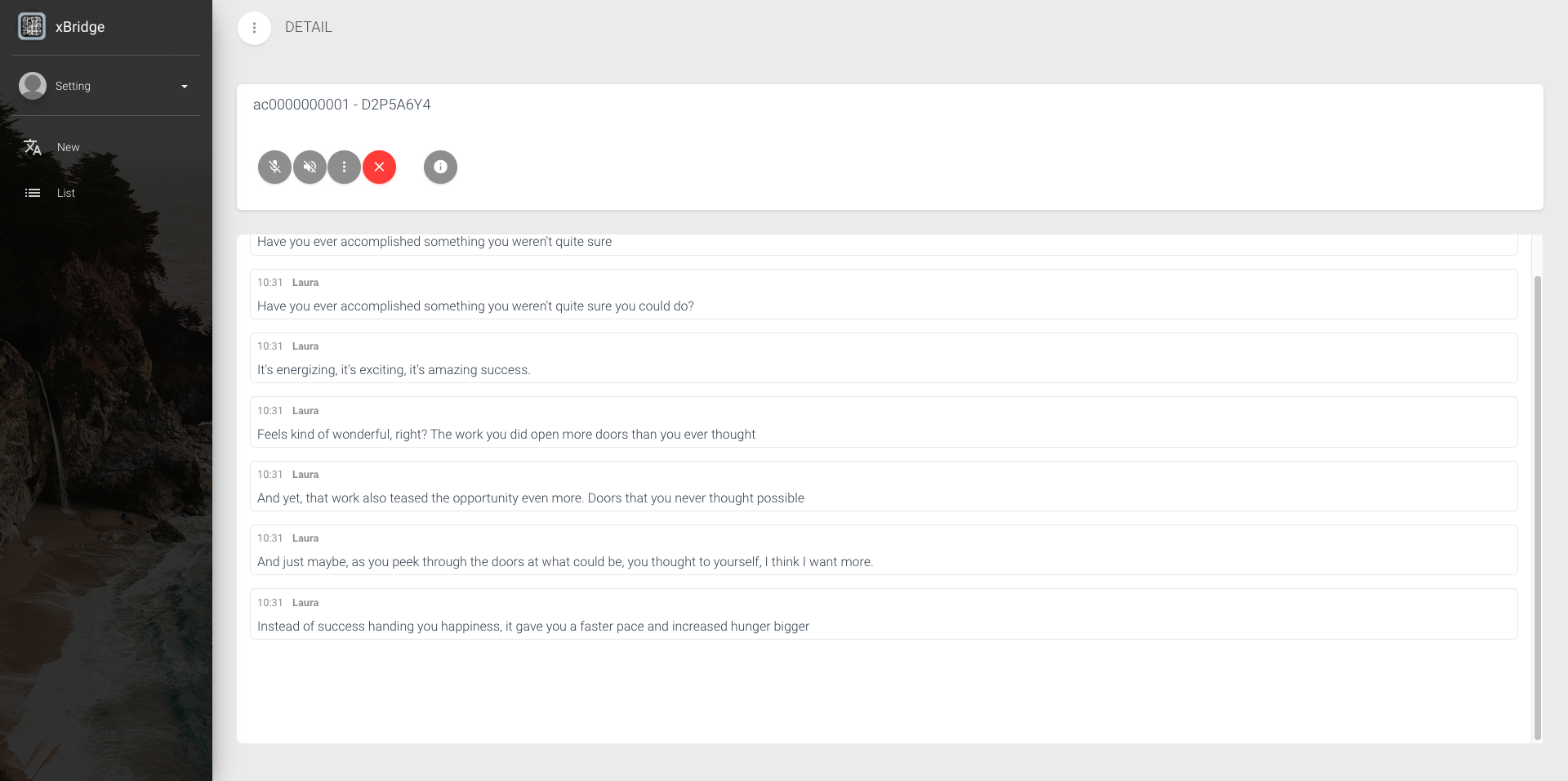
Host language is English, displaying interpretation results from English speaker. Only English transcription results are displayed.
3. Change Meeting Settings #
Note: Changing settings during a meeting is not recommended as it may take time to take effect.
To change settings during an ongoing meeting, click the additional settings icon.
You can select Mute All participants and Settings from the popup menu.
By enabling/disabling Mute All participants, you can allow/deny speech from speakers other than the host.
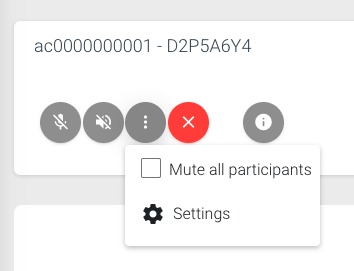
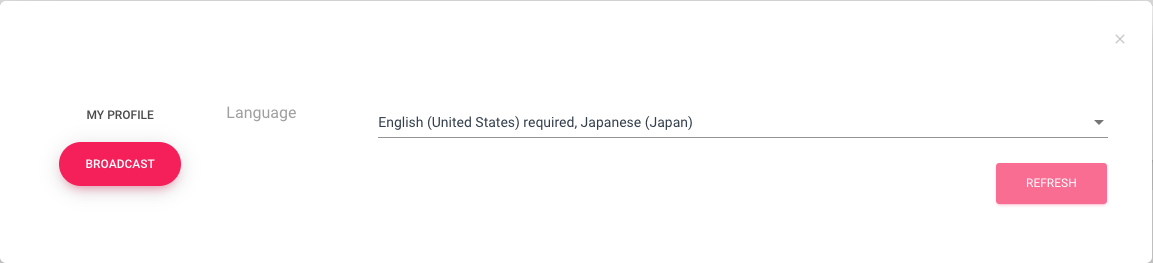
Click the Settings button to change the meeting host’s language settings or meeting participant language settings.
To change the host’s language settings, click the MY PROFILE tab in the menu and select a language.

To change the language settings for Speakers and Viewers, click the BROADCAST tab in the menu and select languages.
After selection, click the REFRESH button to apply the setting changes.
It may take some time for the settings to take effect.