Join Meeting #
Join Meeting as Speaker #
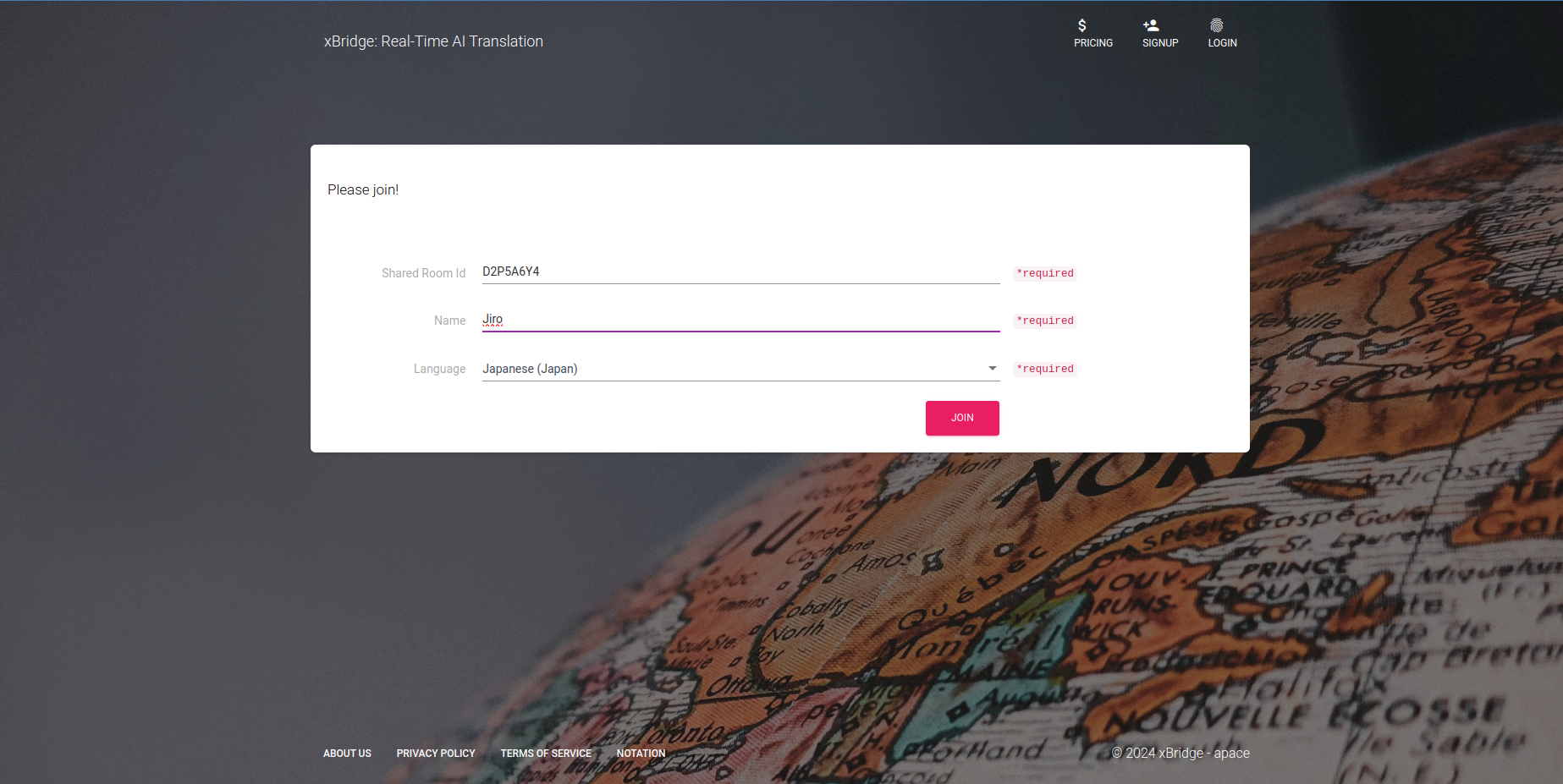
Open a browser, navigate to the participant link for Speakers, and fill in the required fields.
After completing the input, click the Join button to enter the room.
| Item | Description |
|---|---|
| Shared Room Id | Room ID. Automatically entered via the participant link. |
| Name | Enter the Speaker’s name. |
| Language | Select the Speaker’s language from the available list. |
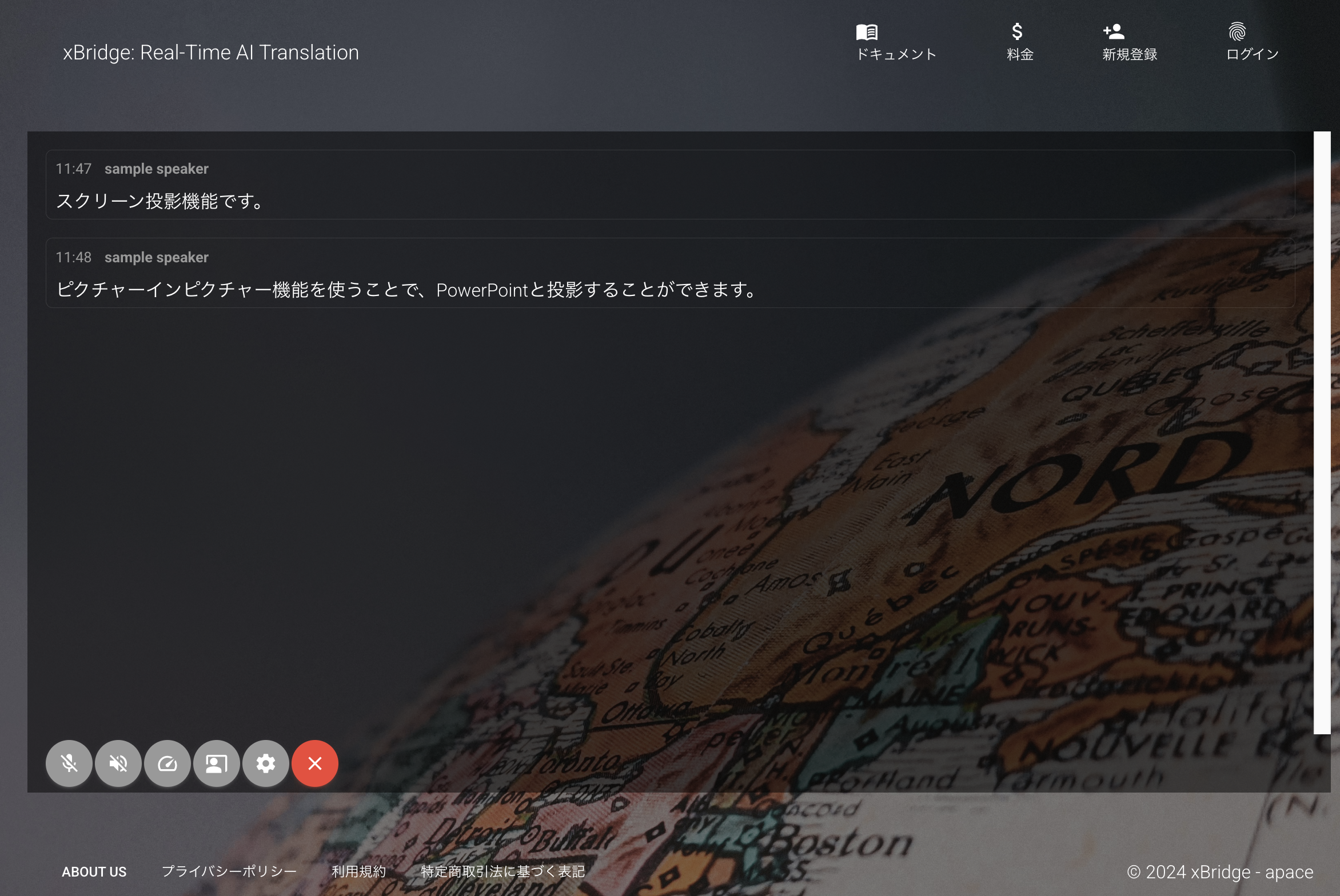
After entering the room, the meeting participant page will be displayed. To start speaking, click the microphone button to enable it and begin the conversation. When enabled, a red microphone will be displayed. If you want to use voice readout for interpretation results, click the speaker button to enable it. When enabled, a red speaker will be displayed. When the meeting or speaker’s conversation is finished, be sure to click the exit button to leave.
The latest updated interpretation content is highlighted in blue.
Display Translation in Presentation Mode (Picture-in-Picture Mode) #
By selecting Presentation Mode (Picture-in-Picture Mode) from the menu, you can display the translation window in picture-in-picture mode.
You can overlay it on Microsoft PowerPoint slideshows or any browser.
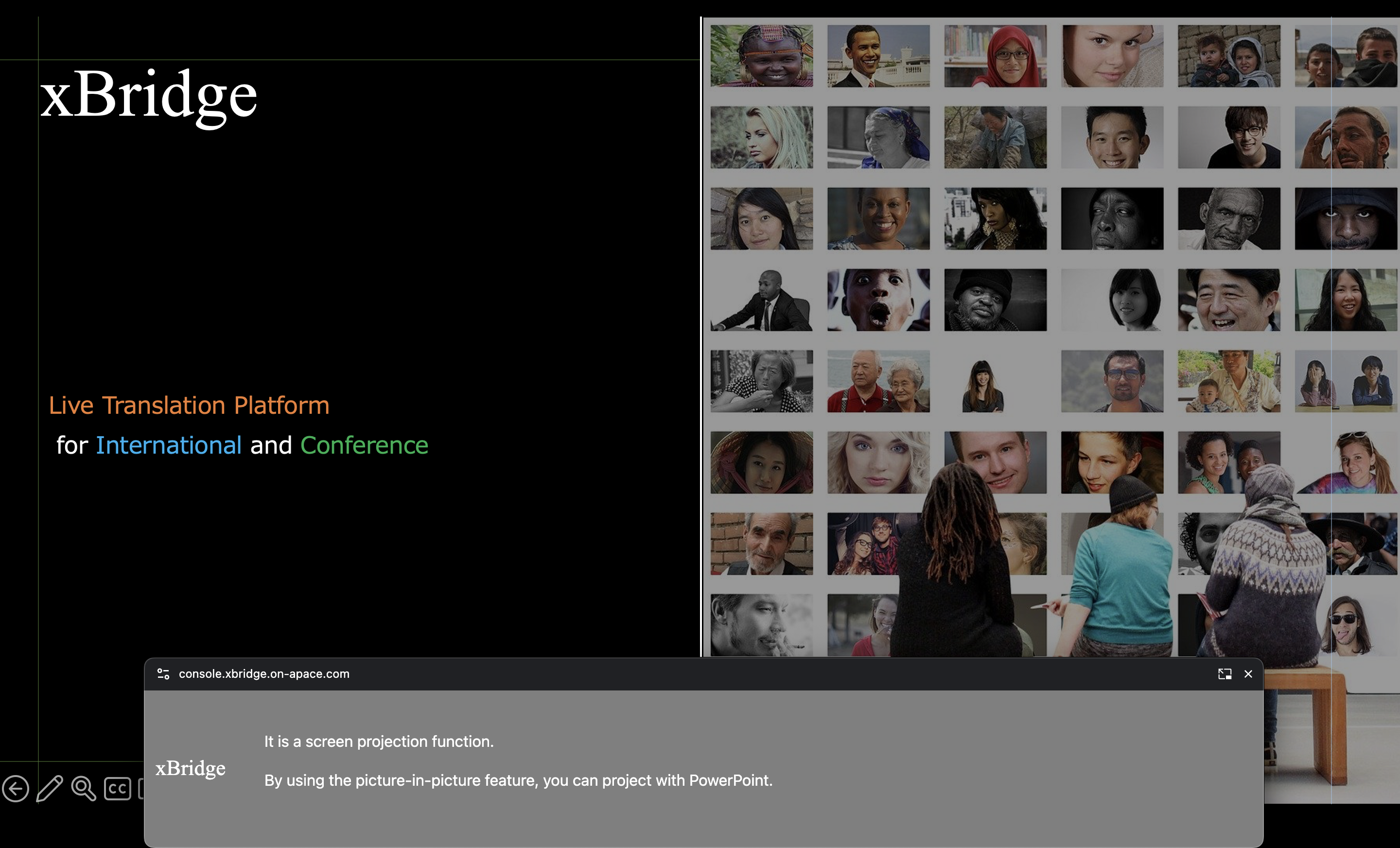
Mac PC users need to use the main workspace
For Mac PC users, applications that you project together such as Microsoft PowerPoint need to use the main workspace.