Join Meeting as Viewer (Screen Projection Translation Mode) #
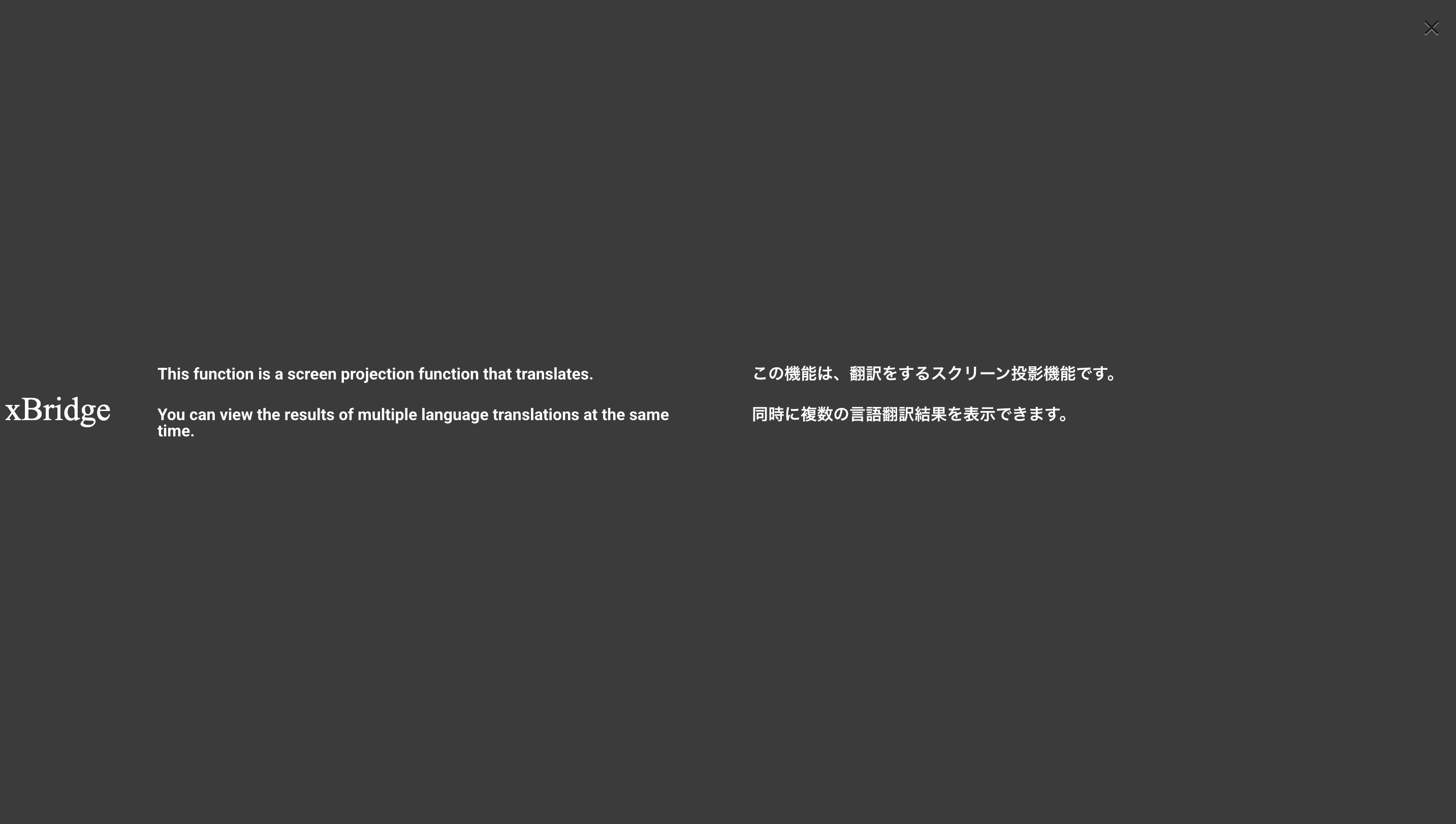
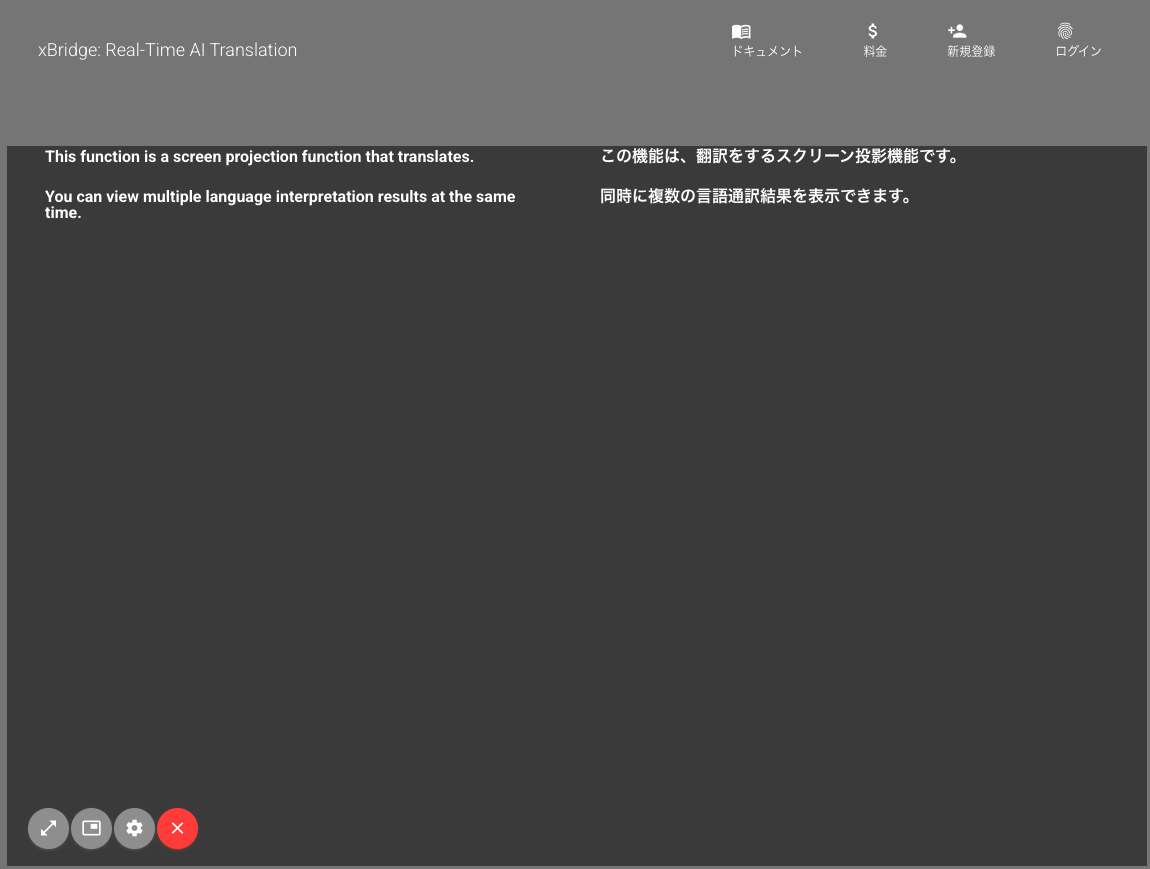
You can use a screen that displays only translation results for screen projection. You can make projection more visible by using full-screen mode.
Join Meeting as Viewer (Screen Projection Translation Mode) #
Prepare the meeting link for screen projection on PC, launch a browser and open the link.
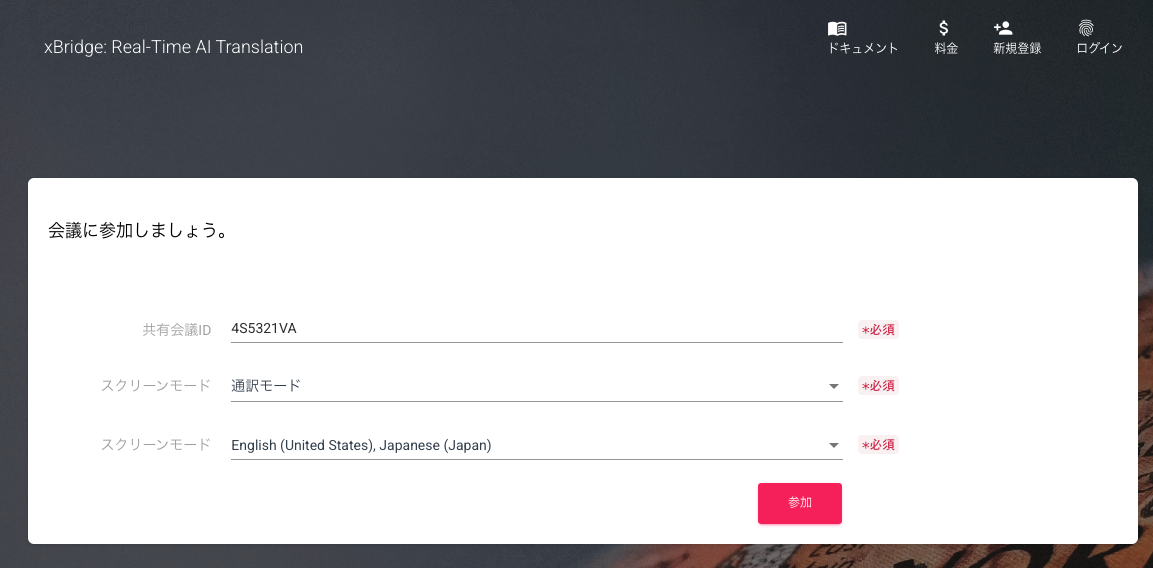
After completing the input, click the Join button to enter the room.
| Item | Description |
|---|---|
| Shared Room ID | Room ID. Automatically entered via the participant link. |
| Screen Mode | Select translation mode from the available list. |
| Language | Select up to 2 languages to display translation results. |
After entering the room, the meeting projection page (translation mode) will be displayed.
Configure Display Settings #
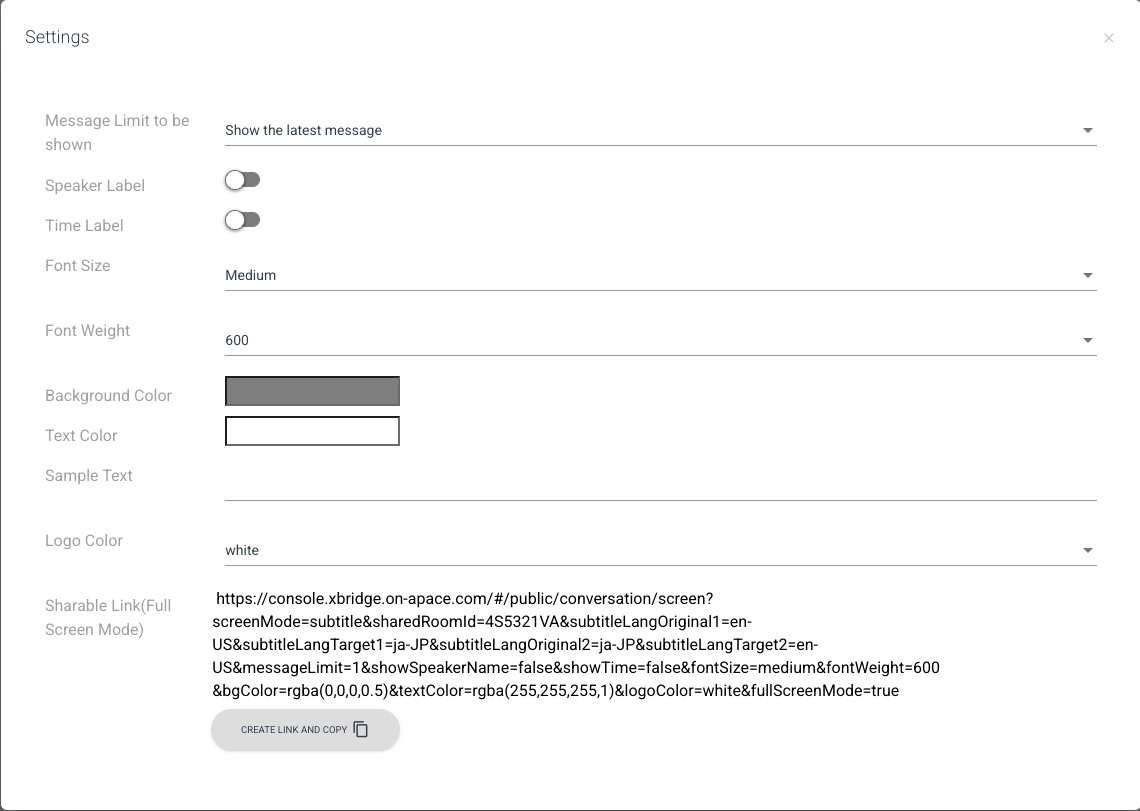
You can configure detailed display settings such as background color and text color.
| Item | Description |
|---|---|
| Latest Message Display Count | Specify the number of latest lines to display. For translation mode, we recommend “1-3” lines. |
| Speaker Label Display | Specify whether to display the speaker’s name. |
| Time Label Display | Specify whether to display the speaking time. |
| Font Size | Specify the font size of the text. |
| Font Bold | Specify whether to make the text bold. |
| Background Color | Specify the background color. |
| Text Color | Specify the text color. |
| Sample Text | Enter sample text to check the display. |
| Logo Color | Specify the color of the xBridge logo. |
| Shared Link (Full Screen Mode) | Get a shared link. The shared link is always in full-screen mode. |
Display Translation #
There are 3 methods for displaying translation:
- Display Interpretation Results in Full Screen
- Display Translation in Picture-in-Picture Mode
- Display Translation with Streaming Software
Display Interpretation Results in Full Screen #
You can display interpretation results across the entire screen using your browser’s full-screen mode. This method is ideal when projecting translation onto projectors or sub-screens.
- Enable full-screen mode in your browser on the translation display screen
Click full-screen mode to display in full screen.
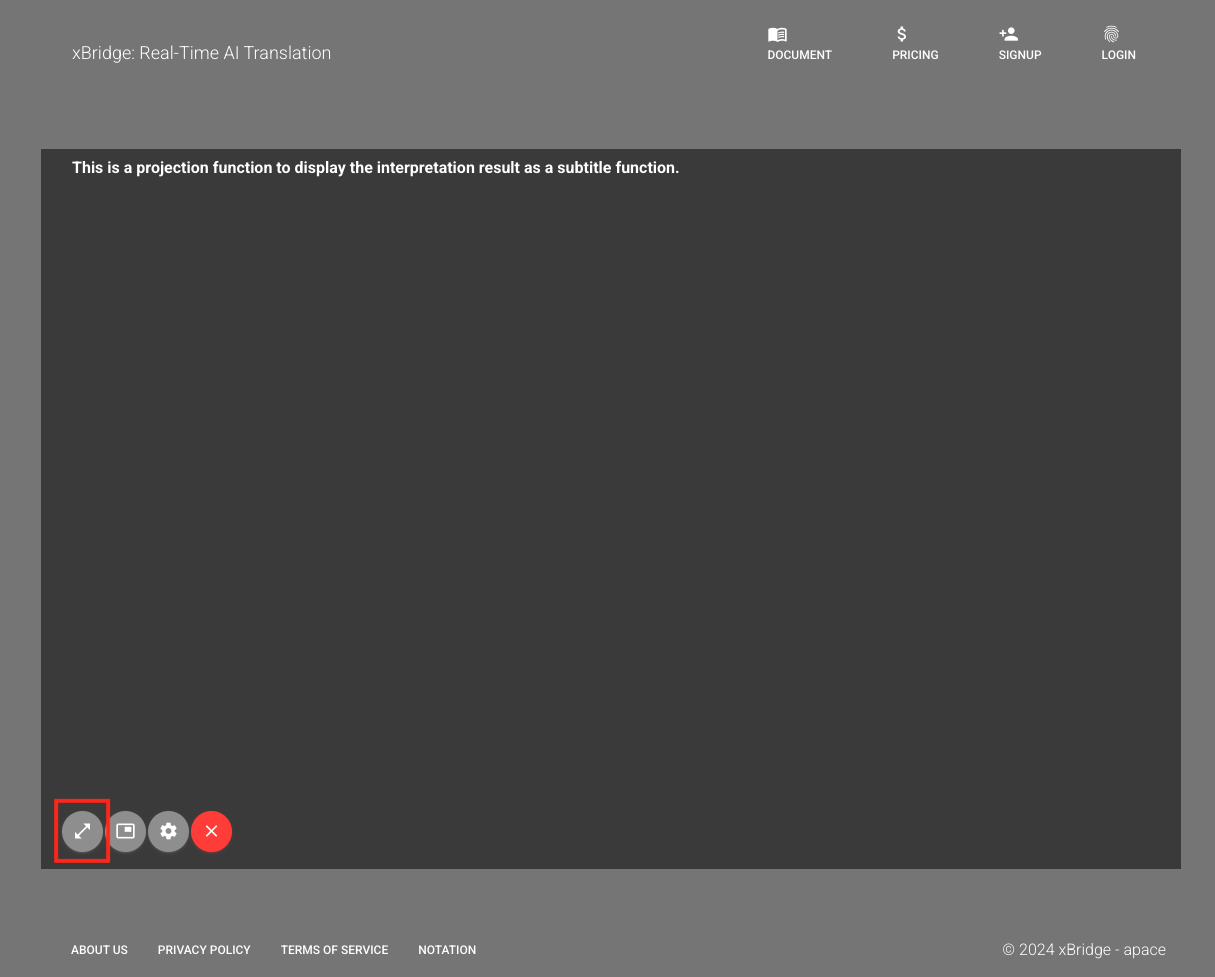
The interpretation results will be displayed across the entire screen
To exit full-screen mode, press the same keys again or press the
Esckey
Benefits of Full Screen Mode
In full-screen mode, browser navigation bars and other UI elements are hidden, displaying only the translation, enabling clear projection that is easy for participants to see.
Display Translation in Picture-in-Picture Mode #
By selecting Picture-in-Picture Mode from the menu, you can display the translation window in picture-in-picture mode.
You can overlay it on Microsoft PowerPoint slideshows or any browser.
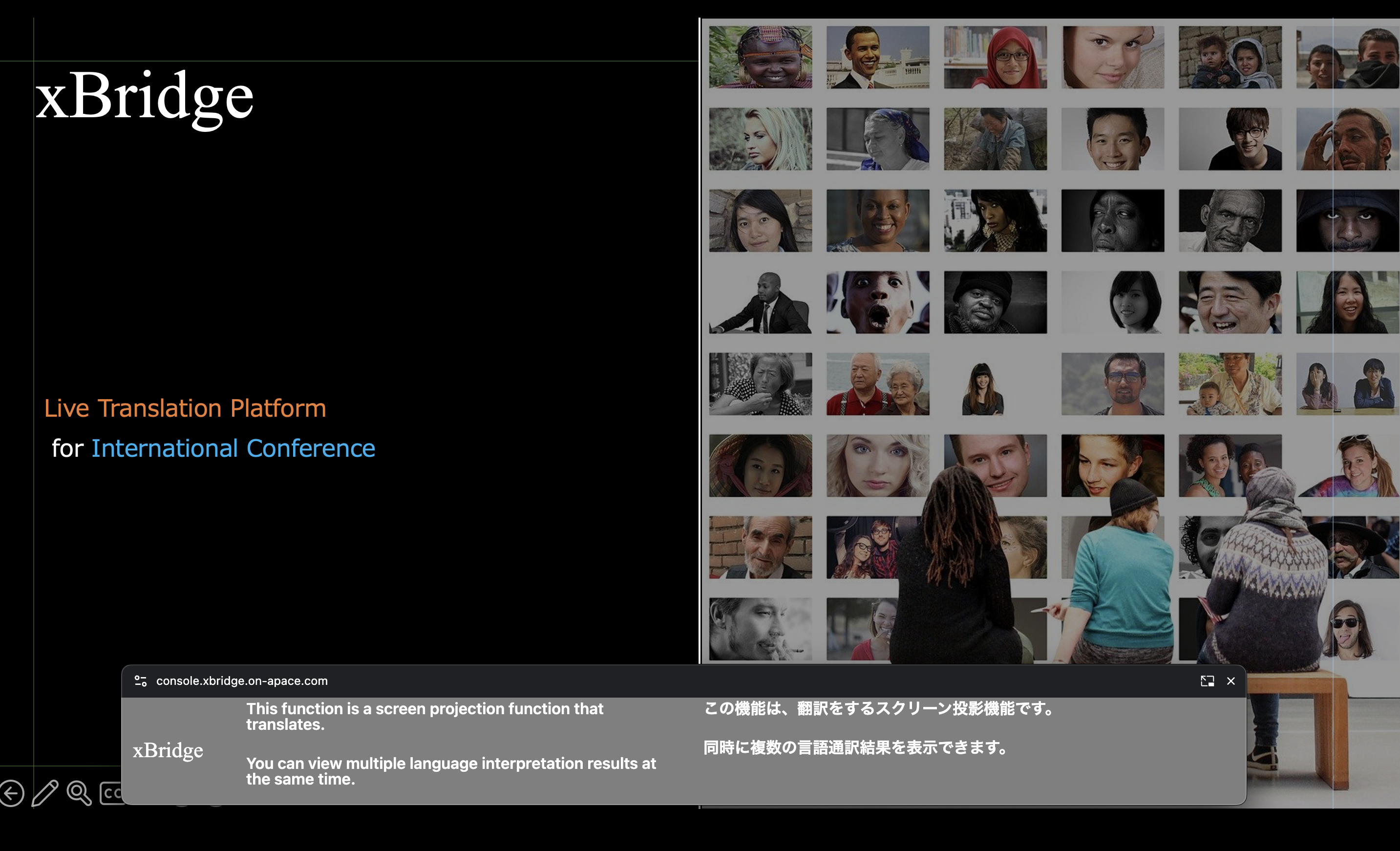
Mac PC users need to use the main workspace
For Mac PC users, applications that you project together such as Microsoft PowerPoint need to use the main workspace.
Display Translation with Streaming Software #
You can display translation with streaming software such as OBS. Get the shared link (full-screen mode), open it as a window, and overlay it with other projection screens.