Create a Meeting #
1. Create a Meeting #
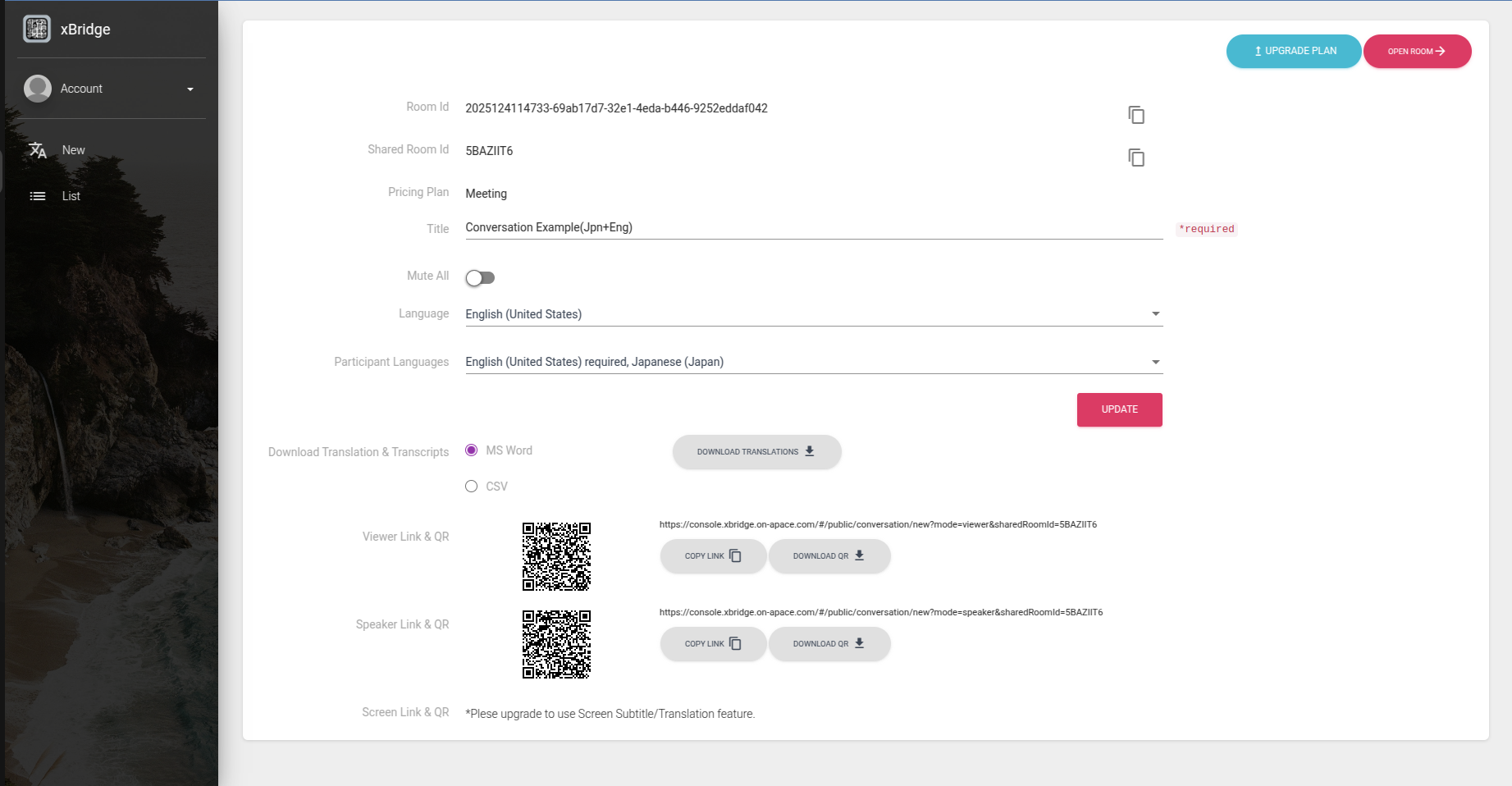
Select New from the menu and fill in the required fields.
After entering the information, click the Create button to create the meeting. The meeting will start automatically after creation.
Trial free usage
After you sign up, you will become an trial user and be allowed to use translation for 60 minutes for free.
| Item | Input |
|---|---|
| Title | Meeting title |
| Mute All | Turn this On if you want to mute all speakers except the host. |
| Model | Select either “Faster Whisper” or “General Model”. You need to become an approved user to use Faster Whisper. Please contact us for an approval. |
| Language | Select the host’s primary language. |
| Participant Language | Select the languages for Speakers and Viewers. For example, if the meeting has English speakers and Japanese participants, select both English and Japanese. |
2. Confirm Meeting Information #
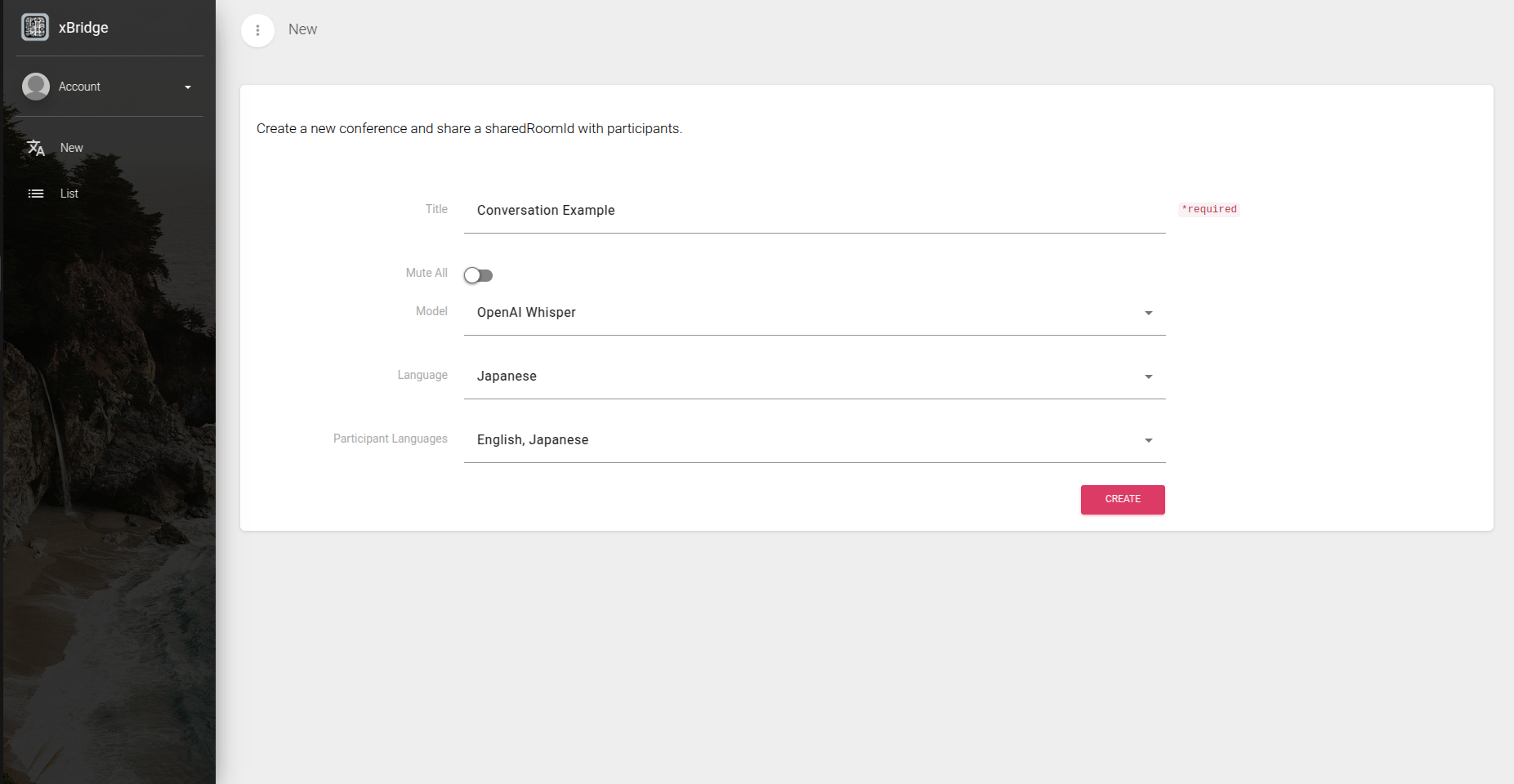
Open the meeting details page that is displayed after starting the meeting.
| Item | Description |
|---|---|
| Listener Link & QR | Press the download button to download the QR code for listeners as an image. Alternatively, click the copy icon to directly copy the link. |
| Speaker Link & QR | Download the QR code for speakers. Alternatively, click the copy icon to directly copy the link. |
| Screen Link & QR | Download the QR code for screens. Alternatively, click the copy icon to directly copy the link. |